
How to Schedule Meetings Across Time Zones (Without the Headaches)
Struggling to schedule meetings across time zones? Learn how to find the perfect overlap window, avoid daylight saving pitfalls, and use free tools to coordinate your global team — without the headaches.
Rachel
4/20/20264 min read
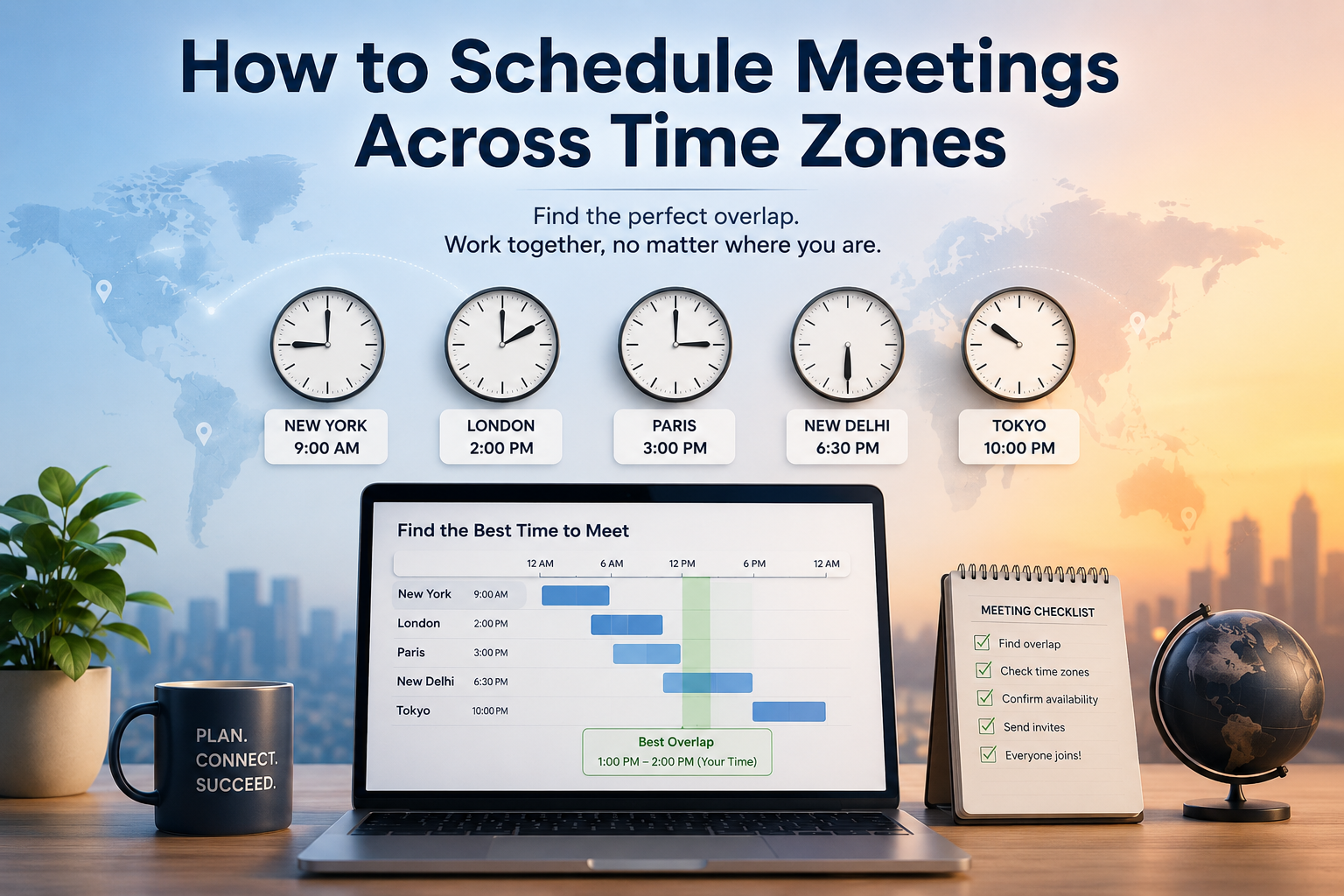

You've been there. You send a meeting invite, and half your team misses it because you forgot one city switched to daylight saving time. Or worse — someone in Tokyo joins at 2 AM because no one checked the time difference.
Scheduling across time zones is one of the most common pain points for remote teams, global businesses, and international travelers. The good news? With the right tools and a few smart habits, it doesn't have to be complicated.
Here's everything you need to know to get it right every time.
Why Time Zone Scheduling Goes Wrong
Before we fix the problem, it helps to understand why it happens so often:
Daylight Saving Time (DST) shifts — Not every country observes it, and those that do don't all change on the same date.
UTC offsets can be confusing — "GMT+5:30" isn't the same as "5.5 hours ahead of London" when London is on BST.
Country vs. city confusion — India has one time zone; the US has six. Saying "send it at 9 AM US time" is never enough information.
Mental math errors — Even experienced professionals miscalculate time differences, especially across the International Date Line.
The result? Missed calls, frustrated colleagues, and deals that fall through because of something entirely preventable.
Step 1: Always Start With UTC
UTC (Coordinated Universal Time) is the global standard. Unlike time zones, it never changes for daylight saving. When scheduling across many regions, anchoring your meeting time to UTC first removes ambiguity.
Instead of saying "let's meet at 3 PM Eastern," try "let's meet at 20:00 UTC" — then let each participant convert to their local time.
Once you've agreed on a UTC time, tools like the Time Converter at TimeNowOnline make it effortless to check what that means in London, Tokyo, New York, or Sydney in seconds.
Step 2: Use a Meeting Planner Tool — Not Mental Math
The fastest way to find a time that works for everyone is to use a dedicated meeting planner. Here's what to look for in a good one:
Shows current local time in each participant's city
Highlights business hours (typically 9 AM–6 PM) in green
Automatically accounts for DST changes
Lets you compare 3 or more cities at once
TimeNowOnline's Meeting Planner does exactly this. You select your cities, and it visually maps out which hours overlap within normal working hours — so you can find the sweet spot without a single calculation.
Step 3: Find the "Overlap Window"
For recurring meetings with a global team, your goal is to find a consistent overlap window — the hours when most or all of your team are working.
Here are some common overlap scenarios:
New York + London: Best overlap is 9 AM–1 PM ET (2 PM–6 PM GMT)
London + Singapore: A 1-hour overlap exists around 9 AM SGT / 1 AM GMT — tough, but workable with rotation
Los Angeles + Sydney: Nearly opposite time zones — meetings require one team to work outside hours
The Time Overlap Tool at TimeNowOnline visualizes exactly this — showing you shared working hours across multiple cities on a single screen. It's especially useful for distributed teams who need a recurring weekly slot that doesn't burn anyone out.
Step 4: Rotate the "Inconvenient" Time Slot
When there's no clean overlap — and sometimes there isn't — the fairest approach is rotation. Instead of always having your Sydney team join at 6 AM, alternate who takes the early or late slot.
Here's a simple rotation framework:
Week 1: Time favors Asia-Pacific team (early morning for Europe/US)
Week 2: Time favors Europe team (early morning for Asia-Pacific)
Week 3: Time favors Americas team
Document this schedule clearly in your team calendar with the local time shown for each region. Many scheduling tools let you display events in multiple time zones — use that feature.
Step 5: Send Calendar Invites With Time Zone Included
This sounds simple, but it's where most people slip up. When you send a calendar invite:
Always include the time zone in the title or description (e.g., "Weekly Sync – 10 AM ET / 3 PM GMT / 11 PM SGT")
Let your calendar tool handle conversion — Google Calendar and Outlook both convert to each recipient's local time automatically if you set your home time zone correctly
Include a world clock link in the invite body so participants can double-check — tools like TimeNowOnline's World Clock let anyone verify the current local time instantly
Pro tip: Always send a reminder 24 hours before — especially around DST change weekends, when clocks shift and people get caught off guard.
Quick Reference: Time Zone Scheduling Cheatsheet
✅ DO
Use UTC as your anchor time
Confirm DST status for every location before scheduling
Use a meeting planner tool to find working-hour overlaps
Rotate inconvenient slots fairly across your team
Include all local times in your calendar invites
❌ DON'T
Assume everyone observes DST on the same date
Use "9 AM my time" without specifying which time zone
Forget to check the date line (e.g., scheduling Monday at 11 PM ET is Tuesday in Tokyo)
Rely on mental math for time differences — always verify
The Right Tools Make All the Difference
You don't need to memorize time zone rules or do mental calculations. The tools at TimeNowOnline are built to handle all of it for you:
🌍 World Clock — Check the current local time in any city instantly.
🔄 Time Converter — Convert any time between two locations with DST handled automatically.
📅 Meeting Planner — Find the best meeting time across multiple cities at once.
🕐 Time Overlap Tool — See shared working hours between cities side by side.
All completely free. No sign-up required.
Final Thoughts
Time zone scheduling doesn't have to be a source of stress. With a few consistent habits — anchoring to UTC, using a meeting planner, rotating inconvenient slots, and always including local times in invites — you can run a smooth global calendar that works for everyone.
The next time you're about to type "let's sync at 3 PM" to a team spread across three continents, take 60 seconds to use the right tool. Your colleagues in Singapore will thank you.
👉 Try it free at timenowonline.com — no sign-up, no hassle.
Time Now Online
Time Now Online delivers accurate, real-time local time for cities, countries, and time zones worldwide. Compare time zones, convert time instantly, and plan meetings with ease using our fast, free tools.
About Us
Legal
© 2026. All rights reserved.
Time data is based on standard global time zone databases and updates automatically.
Places & Seasons
time & meetings